Nov
29
Robots.txt tips and tricks
Filed Under Howto | 8 Comments
robots.txt is a file that you can use to instruct where web crawlers should look for information and where they should not.
How it works?
Good web crawler first accesses root of a domain and looks for robots.txt file.
For example if robot wants to check www.example.com/welcome.html it will first check if www.example.com/robots.txt exists.
And again for example it finds:
robots.txt:
# No robots, Please

User-agent: *

Disallow: /
In above file:
User-agent: * means this section applies to all robots and
Disallow: / instructs the robot that it should not visit any pages on the site.
Note: It is important to know that robots can ignore your /robots.txt and robots.txt file is a publicly available file.
First consideration is really important to know since the robots who ignore the instructions are usually malicious.
What to put inside?
robots.txt is a plain text file. Here are few examples:
To allow all robots to visit all files:
User-agent: *

Disallow:
And opposite disallow all robots out:
User-agent: *

Disallow: /
If you need to disallow a specific agent to visit specific folder
User-agent: SpecificBot # replace the 'SpecificBot' with the actual user-agent of the bot

Disallow: /notimportant/
Above example shows also how you can put comments in the file.
In addition you can tell robots where your sitemap is located
User-agent: *

Sitemap: http://www.example.com/sitemaps/sitemap.xml
Where to put it?
The short answer: in the top-level directory of your web server.
A bit longer: it should be located after your domain name. For example www.example.com/robots.txt not www.example.com/robot_file/robots.txt
Nov
28
If you just got your new CentOS server.
After a while you notice that timestamps in your logfiles are shifted with few hours. So what could be wrong?
Actually is really simple – most probably your timezone is not correct. To check run “date” from command line, this will show what is the time for your server.
Then you find that the timezone is not correct?!
How do you set the correct one?
Unfortunately, this is not an easy thing to figure out. Official documentation states that you can use system-config-date, but it has a bunch of dependencies (when I ran yum install system-config-date on one of my servers it asked to install 84 packages).
So is there an alternative way to do it?
All timezone files are located in /usr/share/zoneinfo. To select the appropriate named timezone for your location. For my location, Montreal, Canada, I actually have to select: America/Montreal. For you it could be different so make note of the appropriate folder and file for your timezone.
The active timezone used on your system is in the /etc/localtime file.
The default will vary depending on your server host and it depends on the value that was provided during installation.
We simply need to replace this file with the file we selected in the previous step.
Even I say replace, actually is recommended to create a link to the pertinent file rather than actually replacing the file.
Here are the steps to follow:
First, backup the existing localtime file (it is always good practice to make backups of original config files).
mv /etc/localtime /etc/localtime.bak
Next, create the link:
ln -s /usr/share/zoneinfo/ /etc/localtime
Test your change.
Run “date” from the command line, and ensure that the appropriate time, date, and timezone are reported.
Nov
25
How to edit hosts file in Windows
Filed Under Howto | Leave a Comment
hosts file is a text file used to map IP addresses to hostname before DNS was in place. So you will ask why to edit it?
Simple – sometimes is required to have map if specific host to different IP ( for example: testing ).
In general is not recommended to edit hosts file. Even some viruses are using it to map popular antivirus sites to localhost and hence deny access to them.
The file is located in %systemroot%\system32\drivers\etc\ (which for most of computers translate to C:\windows\system32\drivers\etc\)
In Windows XP and lower if you are logged as administrator you can edit the file directly, but to increase security (since most of ordinary users log as administrators) Microsoft decided to add in Windows Vista (and newer) additional layer of security so you are unable to edit the file directly.
Here is how to do it:
- In Start menu type Notepad
- Right click on Notepad and select run as Administrator
- Continue as usual – edit the file and save it
Note: Some antivirus products “protect” hosts file so you might need to disable that protection before editing.
Note: For newbies the format of the file is following:
x.x.x.x FQDN
Where x.x.x.x is IP address in numeric form
and FQDN is Fully Qualified Domain Name
Example:
127.0.0.1 localhost
Nov
23
Install telnet in Windows
Filed Under Howto | Leave a Comment
If you are using telnet to test and troubleshoot services you will be “surprised” that telnet is not installed by default.
C:\Users\>telnet

'telnet' is not recognized as an internal or external command,

operable program or batch file.
To to enable it back follow this procedure:
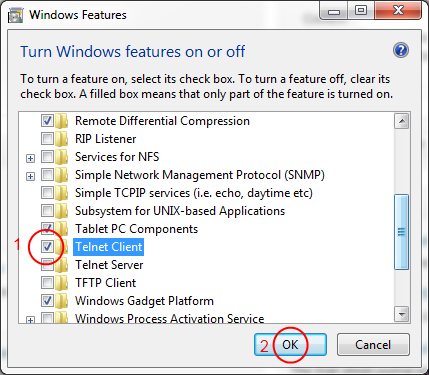
- Go to Start – > Control Panel -> Programs -> Turn Windows Features On and Off
- Check Telnet Client and click OK (See screenshot below)
- After a while it is ready
- Enjoy
Nov
10
Send e-mail with telnet
Filed Under Howto | Leave a Comment
When testing e-mail server one of the tools that are proven to be useful is plain old telnet.
Actually this is not a surprise since SMTP protocol function is similar.
Here is how to use it:
1. Start from command prompt
2. Type
telnet mailhost 25
Note: Replace mailhost with your email server.
3. Type:
HELO server.com
Note1: depending on the server HELO have to be replaced with EHLO
Note2: Replace server.com with your domain
4. Type
MAIL FROM:you@server.com
Note: Again replace you@server.com with your e-mail address
5. Type
RCPT TO: recipient@server2.com
Note: Replace recipient@server2.com with recipient e-mail address
6. Type
DATA
after that optionally
SUBJECT: Your subject
then type your message
to finish place dot at new line.
.
6. To exit type
QUIT
Oct
31
Temporary license expired
Filed Under Fix | Leave a Comment
It happens that sometimes when connecting to misconfigured Windows Terminal server (TS) client receives following error message:
“Your temporary license about to expire in… days”
This is usually dye to misconfiguration on the server side, but here is the trick to get additional 90 days temporary license:
WARNING: This requires editing of Windows registry. Use it on your own risk.
- Launch regedit – Start -> Run… -> regedit
- Go to HKLM\Software\Microsoft\MSLicensing\
- Delete hardwareID entry.
- Enjoy another 90 days, but not forget to plan for fixing the issue 🙄
Oct
6
Steve Jobs 1955-2011
Filed Under news | Comments Off on Steve Jobs 1955-2011

Sep
20
Windows 8 – First updates
Filed Under Windows | Leave a Comment
After initial installation I started to measure performance.
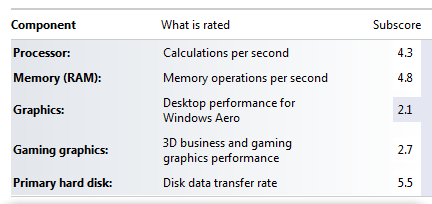
One really good tool for the job is windows experience index.
Initially my system had overall index of 2.1:
Then I checked for updates. Fortunately there were some from Microsoft. Here is the result after updates:
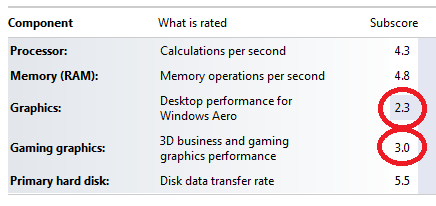
As you can see my index jumped to 2.3 and my graphics performance increased to from 2.7 to 3.0.
Encouraged by this I’ve installed latest video driver from NVIDIA (for Windows 7):
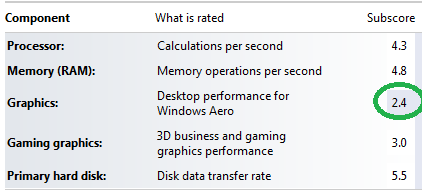
The results since positive My index increased to 2.4 were not so drastic, but still an improvement. Probably this is because my card is relatively old and slow or just because NVIDIA does not have(yet) drivers tuned specifically for Windows 8…
Only time will tell 😉
Stay tuned.
Sep
17
I had Windows 8 installed on my old AMD 64 with 2G RAM.
Installation went smoothly and it was really quick (did not time it, but it is faster than XP installation) with 2 reboots required.
Almost all Hardware was recognized and functional – it looks like my integrated card reader give some trouble… but will work on it.
What I had to probably start with is that the license for that system is valid until March 8, 2012 (Is it a coincidence that this is international women day 😉 ).
And most importantly you have to plan that installation really carefully.
If you need to (witch is most probably the case) keep your old OS (XP/W7) you need to:
- Create new partition for Windows 8 – this can be done with live CD like partedmagic or similar tool (windows disk management).
- Choose that partition as destination during windows 8 install – you need to choose Custom as install method.
- Continue installation
- After installed go to system properties -> advanced -> startup and recovery settings and choose previous Windows version.
This procedure will show you menu on boot so you can choose what version to boot.
Sep
17
If you did not notice Microsoft released Windows 8 developer preview.
It can be freely downloaded from here.
But how to install it on the new computers without DVD ( NO CD’s available 🙁 since Win 7)?
The simplest answer is from USB key. But the question is how to “burn” DVD image to USB key?
So here is what you need:
- Computer that covers minimum system requirements – 1GHz+ CPU, 1/2GB RAM (32/64-bit versions).
- USB key (4G+) Smallest 32-bit image is 2.8G
- High speed internet – do not even think downloading via 56k modem
- You need to download appropriate version – 32 or 64 bit
- And finally you need a tool to “burn” – take it from here.
Next you need to:
- Install the tool
- Run the tool – Simply follow the wizard.
NOTE: your USB drive will be erased so make copy of your data before using it.
Warning: See my other post “Windows 8 installation and initial experience” before starting installation.
- Next step is to boot from USB key and install – this depends on your hardware 😉
2-nd NOTE: This is development preview version. Do not expect it to be stable it is not intended for end users yet. 😉
You must be logged in to post a comment.