Aug
10
CentOS – install IPMI
Filed Under Command line, Howto, Linux | Leave a Comment
First what is IPMI?
IPMI stands for Intelligent Platform Management Interface standardized computer interface for administrators to manage computer system and monitor its operation.
It is supported by most major providers – Intel (of course), Dell, HP…
Installation
Installation is really simple:
yum install OpenIPMI OpenIPMI-tools
chkconfig ipmi on
service ipmi start
If you see error at last command check system log – it is possible that your hardware does not support IPMI.
Usage
To to see what you can do with it:
ipmitool help
man ipmitool
Enjoy:)
Jun
3
Bash: Get yesterday’s date
Filed Under Command line, Howto, Linux, Unix | 2 Comments
Recently I had to create a bash script to copy some files based on date.
The rule was copy yesterday’s files to …
But How to determine what was the yesterdays date?
The answer was in date man page.
Here are the parts from the script related to yesterday date:
$date -d '1 day ago' +'%Y/%m/%d'
2011/06/02
on Internet I’ve found also:
date --date='yesterday'
Thu Jun  2 14:01:28 EDT 2011
And (Bonus!!) if you want to go in future 😉
date --date='tomorrow'
Sat Jun  4 14:04:29 EDT 2011
Happy scripting…
May
23
We are mobile friendly
Filed Under Announcements | Leave a Comment
Site was modified to give better experience to mobile users.
Your mobile browser will be automatically recognized.
If you wish to return back to full version there is a link at the bottom of the site.
May
14
Angry birds for Browser :)
Filed Under fun, news | Leave a Comment
Good news the cult game for iOS has HTML5 version for Chrome OS.
And the better news it could be played from windows OS, but Google Chrome or Firefox 4 browser is requred.
I personally tested on Firefox.
And the bad news…
Of course there is one – it is really addicting.
You are warned 🙂
Apr
23
Debian – upgrade to Squeeze
Filed Under Howto, Linux | Leave a Comment
After release of Debian 6.0 (squeeze) the question of how to upgrade from previous version to the latest.
It appears to be fairly simple process:
1. Edit sources.list
vi /etc/apt/sources.list
2. Replace distribution name (I appeared to have Lenny) with Squeeze.
%s/lenny/squeeze/g
Note: DebianVolatile has been superseded by squeeze-updates since Debian Squeeze.
To use squeeze-updates just add
deb http://mirrors.kernel.org/debian squeeze-updates main contrib
to sources.list
Then as usual:
apt-get update
apt-get dist-upgrade
Feb
16
tsclient toggle full screen mode
Filed Under Howto, Linux | Leave a Comment
When working from Linux to a windows machine via remote desktop the obvious choice is tsclient.
In windows you just move your cursor at the top of the screen to the control bar and there you can click the button for windowed mode.
But tsclient does not have that instead you can use following keyboard combination: “Ctrl-Alt-Enter”.
Tip: To improve tsclient performance just go to performance tab and check enable bitmap caching.
Aug
28
How to replace Windows Task manager
Filed Under Windows | Leave a Comment
In Windows world Task Manager is included in OS. It is easy to use for basic troubleshooting and to kill hanged processes.
But even the tool is powerful enough for everyday usage for further investigation or advanced use his abilities are simply not up to date.
Microsoft acquired Sysinternals a years ago and continued to develop and improve their tools. Furthermore they are freely available.
Process Explorer has much more:
- Updates a lot of system data every second
- It shows process trees and is useful of tracking DLLs
- You can investigate each process – his threads, interrupts, devices, registry keys etc.
- It is free and does not require installation
- in addition it could be easily configure to replace TaskManager.
If you are reading up to here you should be interested in the tool. Here is how to get it.
Go and download the latest version from Sysinternals website.
Unzip the downloaded file. c:\Program Files\ProcessExplorer is a good place.
Run procexp.exe and start to explore…
If you like the tool so much that you are ready to get rid of TaskManager in favor of Process Explorer simply go to Options menu and check Replace Task Manager as shown here:
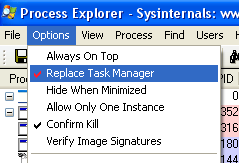
Options menu Process Explorer to Replace Task Manager
Aug
22
Install dig in Debian
Filed Under Fix, Linux | Leave a Comment
Recently I had to check DNS records on specific server from Debian.
Excellent tool for this job is dig – it allows you to see all DNS records like: A, MX, TXT…
Unfortunately the tool was not installed.
The proper way of installing it is:
apt-get update && apt-get install dnsutils
In case you did update recently you can skip the first command.
Aug
1
Kompozer 0.8b3
Filed Under Linux, news | Leave a Comment
From long time I did not update KompoZer page, but there was no stable version.
Anyway I’ve decided to publish an updated (even it is considered
development) version.
And for those of you who do not know the program:
KompoZer is a complete web authoring system that combines web file management and easy-to-use WYSIWYG web page editing.
KompoZer is designed to be extremely easy to use, making it ideal for non-technical computer users who want to create an attractive, professional-looking web site without needing to know HTML or web coding.
Visit my Kompozer RPM package page to download.
Jul
31
screen -r : Cannot open your terminal ‘/dev/pts/0’ – please check.
Filed Under Fix, Linux, Unix | 3 Comments
I love screen – it allows you to detach you console and still have the program running.
For more info:
man screen
Recently I experienced following error:
$ screen -r

Cannot open your terminal '/dev/pts/0' - please check.
After searching for solution I found several instructing to change permissions etc.
But different solution, almost “hack” is the one I like.
Before starting screen type:
script /dev/null
And after that you can type:
screen -r
Only drawback is that you need to type one additional exit for script to terminate.
Credits for this to Harry Jackson. Unfortunately the resource was not available so i did to put a link to the site.
You must be logged in to post a comment.