Nov
23
Install telnet in Windows
Filed Under Howto | Leave a Comment
If you are using telnet to test and troubleshoot services you will be “surprised” that telnet is not installed by default.
C:\Users\>telnet

'telnet' is not recognized as an internal or external command,

operable program or batch file.
To to enable it back follow this procedure:
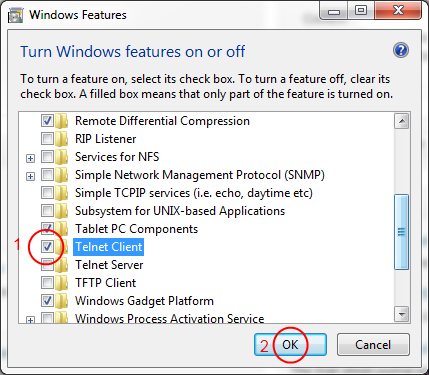
- Go to Start – > Control Panel -> Programs -> Turn Windows Features On and Off
- Check Telnet Client and click OK (See screenshot below)
- After a while it is ready
- Enjoy
Nov
10
Send e-mail with telnet
Filed Under Howto | Leave a Comment
When testing e-mail server one of the tools that are proven to be useful is plain old telnet.
Actually this is not a surprise since SMTP protocol function is similar.
Here is how to use it:
1. Start from command prompt
2. Type
telnet mailhost 25
Note: Replace mailhost with your email server.
3. Type:
HELO server.com
Note1: depending on the server HELO have to be replaced with EHLO
Note2: Replace server.com with your domain
4. Type
MAIL FROM:you@server.com
Note: Again replace you@server.com with your e-mail address
5. Type
RCPT TO: recipient@server2.com
Note: Replace recipient@server2.com with recipient e-mail address
6. Type
DATA
after that optionally
SUBJECT: Your subject
then type your message
to finish place dot at new line.
.
6. To exit type
QUIT
Aug
10
CentOS – install IPMI
Filed Under Command line, Howto, Linux | Leave a Comment
First what is IPMI?
IPMI stands for Intelligent Platform Management Interface standardized computer interface for administrators to manage computer system and monitor its operation.
It is supported by most major providers – Intel (of course), Dell, HP…
Installation
Installation is really simple:
yum install OpenIPMI OpenIPMI-tools
chkconfig ipmi on
service ipmi start
If you see error at last command check system log – it is possible that your hardware does not support IPMI.
Usage
To to see what you can do with it:
ipmitool help
man ipmitool
Enjoy:)
Jun
3
Bash: Get yesterday’s date
Filed Under Command line, Howto, Linux, Unix | 2 Comments
Recently I had to create a bash script to copy some files based on date.
The rule was copy yesterday’s files to …
But How to determine what was the yesterdays date?
The answer was in date man page.
Here are the parts from the script related to yesterday date:
$date -d '1 day ago' +'%Y/%m/%d'
2011/06/02
on Internet I’ve found also:
date --date='yesterday'
Thu Jun  2 14:01:28 EDT 2011
And (Bonus!!) if you want to go in future 😉
date --date='tomorrow'
Sat Jun  4 14:04:29 EDT 2011
Happy scripting…
Apr
23
Debian – upgrade to Squeeze
Filed Under Howto, Linux | Leave a Comment
After release of Debian 6.0 (squeeze) the question of how to upgrade from previous version to the latest.
It appears to be fairly simple process:
1. Edit sources.list
vi /etc/apt/sources.list
2. Replace distribution name (I appeared to have Lenny) with Squeeze.
%s/lenny/squeeze/g
Note: DebianVolatile has been superseded by squeeze-updates since Debian Squeeze.
To use squeeze-updates just add
deb http://mirrors.kernel.org/debian squeeze-updates main contrib
to sources.list
Then as usual:
apt-get update
apt-get dist-upgrade
Feb
16
tsclient toggle full screen mode
Filed Under Howto, Linux | Leave a Comment
When working from Linux to a windows machine via remote desktop the obvious choice is tsclient.
In windows you just move your cursor at the top of the screen to the control bar and there you can click the button for windowed mode.
But tsclient does not have that instead you can use following keyboard combination: “Ctrl-Alt-Enter”.
Tip: To improve tsclient performance just go to performance tab and check enable bitmap caching.
Jun
23
find tips and tricks
Filed Under Howto, Linux | Leave a Comment
find is LINUX/UNIX command to find files in file system.
Here you will find few tricks:
find ~ -type f mtime 0
Will show all files in your home folder created today.
find ~ -type f mtime 0 -iname '*.mp3'
Will narrow the search to .mp3 files only and iname is not case sensitive.
And if you want to search for files that are not belonging to you use:
find ~ ! -user ${USER}
Lot more options you can find in find man page
man find
May
15
All new computers do not have FDD (Floppy Disk Drive) and even you find one it could be rally hard to find good media.
As remedy to this you could still boot from a CD
But sometimes you even do not have CD/DVD drive.
And then you need to boot from floppy to update your BIOS.
So what to do?
Do not run to your basement looking for floppies. There is another way. You can use grub and syslinux.
First you need Linux installed (OR probably you already have it). Examples here are for Ubuntu.
Next step is to install needed software:
sudo aptitude install syslinux
Then download a floppy image:
http://www.allbootdisks.com/downloads/Disks/MS-DOS_Boot_Disk_Download47/Diskette%20Images/Dos6.22.img
Then mount the image:
sudo mount Dos6.22.img /mnt -o loop
You can remove everything except:
- autoexec.bat
- command.com
- config.sys
- himem.sys
- io.sys
- mscdex.exe
- msdos.sys
After that in case of upgrading BIOS you need to copy new bios file and flash program.
Finally we will prepare the boot image.
sudo cp /usr/lib/syslinux/memdisk /boot/

sudo cp Dos6.22.img /boot/
Reboot and on grub screen press c and boot the image using:
root (hd0,0)

kernel memdisk

initrd Dos6.22.img
Mar
27
Fix Hibernate in Windows XP part 2
Filed Under Fix, Howto, Windows | Leave a Comment
Hibernate shortcuts
As addition to Fix Hibernate in Windows XP here is additional shortcut I discovered.
To activate hibernate option I had to press <shift> every time I go to shutdown menu, but once I did not and it worked…
So here is the full shortcut:
<WinKey> -> <U> -> <H>
What that means?
– Start menu
– Shutdown
– Hibernate
Sep
26
Fix Hibernate in Windows XP
Filed Under Fix, Howto, Windows | Leave a Comment
Usually in Windows XP when you click Start -> Turn off Computer you have following options:
- Stand by
- Turn off
- Restart
But there is another option called Hibernate. As name suggests when you choose that option your computer goes in deep sleep. This is different from Stand by mode and Shutdown and actually is in between.
In that mode Windows XP does the same as Stand by, but in addition writes memory dump on the hard drive and turns off the PC.
After you power up the PC the memory dump is loaded in the memory and computer resumes operation as after stand by.
It takes a bit more time for that operation, but is much less hat initial power up.
How to enable Hibernate?
- Make sure that you are logged in with administrator account. You can do that by going in Start -> Control Panel -> User account
- Go to Power Options and choose Hibernate tab
- Check Enable hibernation
- Now you are able to hibernate your computer
Troubleshooting:
- I do not have hibernate icon
If on turn off menu you do not have hibernate icon it means that you have newer computer BIOS that supports Stand by by lower power option.
If you want to hibernate you need to press Shift button until hibernate icon appears.
You must be logged in to post a comment.